|
Please Visit Our Sponsors |
7-12-2007 Art Feierman
Overview![]()
Image Quality
General Performance
Warranty
Summary, Pros, Cons
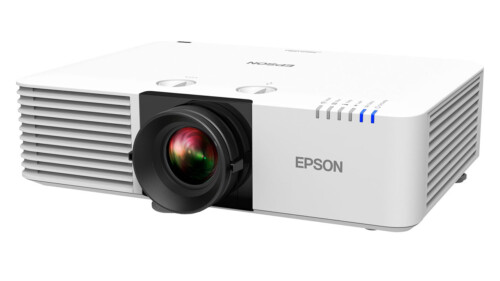
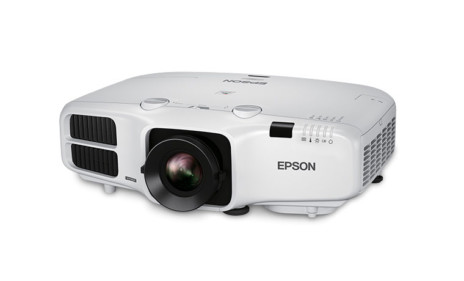
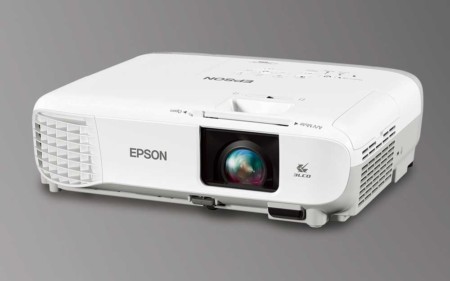
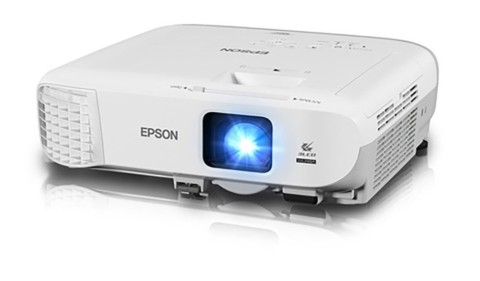
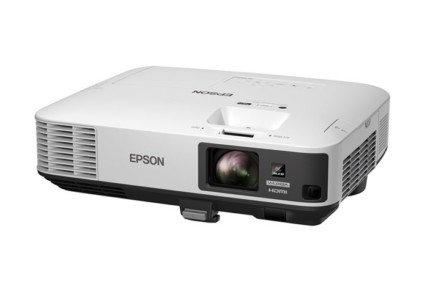
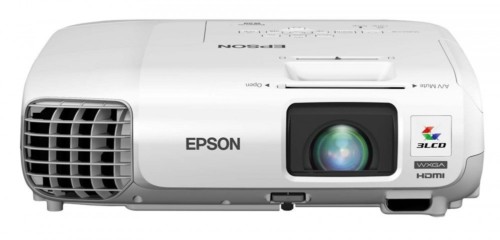
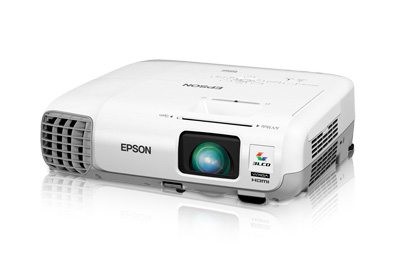
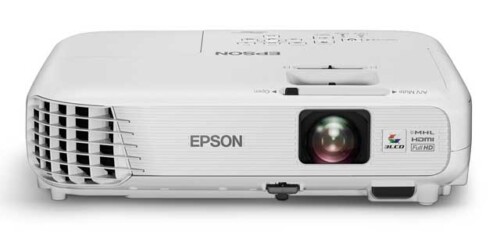
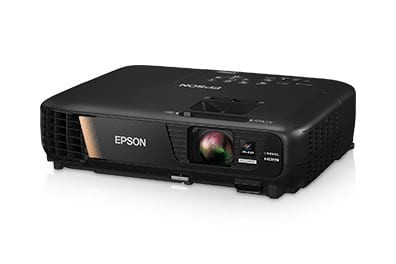
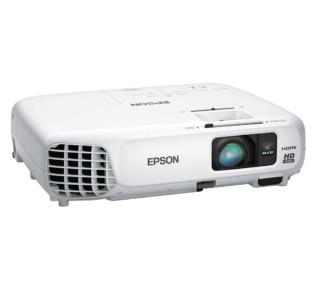
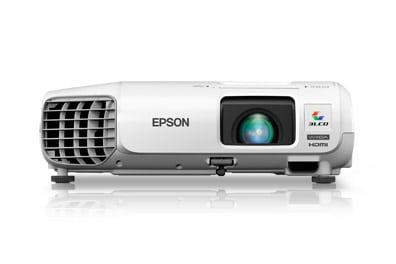
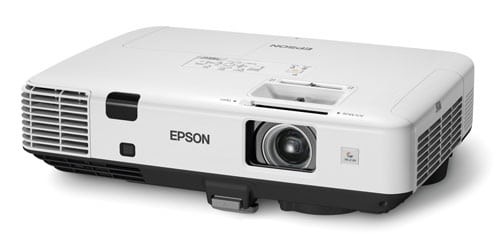
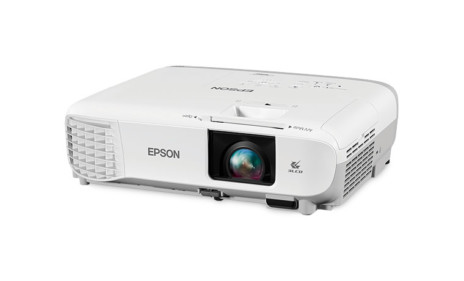
The Epson Powerlite EMP-1815p is a relatively compact, medium weight portable XGA resolution projector. It is designed to be both high performance (rated 3500 lumens), and also, to be exceptionally capable when it comes to features, including both wireless and wired networking.
It possesses advanced features such as email notification for maintanence or failure, and a host of other goodies. In this review we will consider the performance of the 1815p, and also the less expensive Powerlite 1810p, which lacks the networking features of the Powerlite 1815p, but is otherwise the same.
In the past I've reviewed Epson's entry level projectors (like the SVGA resolution S4 and S3, before it), and some of their micro-portables (under 4 pounds). This is the first time I have chosen a mid-sized portable, one fully capable as a "fixed - install" projector, but, also, more than sufficiently portable for those looking for a high power, moderately lightweight projector that, for example, is easily small enough to be carry-on luggage on your favorite airline.
OK, let's see what this Epson (or rather, these Epsons) can do.
MSRP: $3,999 (1810p: $3699, MAP: $2999 (1810p: $2699)
Technology: 3LCD
Native Resolution: XGA (1024x768)
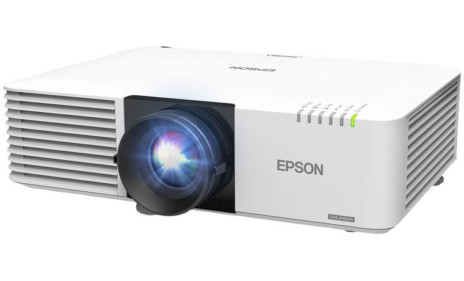
Brightness: 3500 lumens
Contrast: 500:1
Zoom Lens ratio: 1.6:1
Lens shift: None
Lamp life: 2500 hours (high brightness), 3000 hours (low brightness)
Weight: 6.9 lbs.
Warranty: 2 years Parts and Labor, with overnight replacement program, both years
Click For more complete specifications on the Epson Powerlite 1815p
As is usual, we'll start from the front.
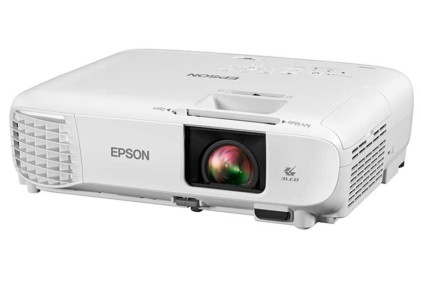
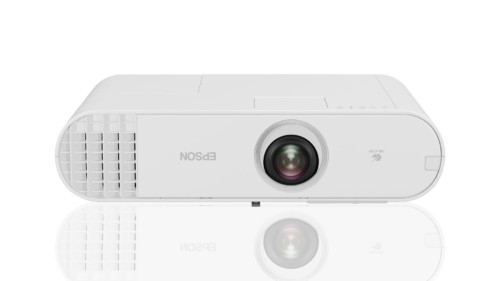
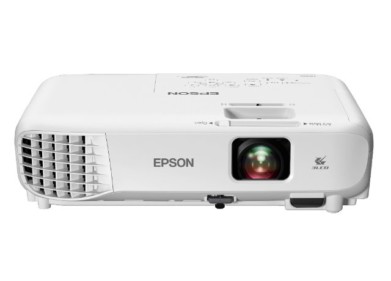
The 1815p has its recessed zoom lens mounted off to the right side (as you face the projector). To the right of the lens area is the front Infra-red sensor for the Epson's remote control.
Located under the front center, is a push button to drop the centered front adjustable foot. These Epson projectors also have left and a right rear adjustable (screw thread) feet, for a stable, three point stance.
On the top of the projector, immediately behind the lens, is the lens cover door. Closing this door, not only keeps dust off the lens when not in use, but also functions as an A/V Mute, which saves lamp life, when you want to temporarily pause a presentation, and blank the screen.
Immediately behind the A/V Mute door is a recessed area for adjusting lens focus, and behind it, lens zoom.

Further back is the control panel, which is nicely laid out. (Looking from the rear), the control panel starts with the Power switch on the left side (and power indicator), and below it, indicator lamps for lamp function and temperature. To the right of the Power button is a Quick Setup button that let's the Epson projector do its thing, including automatic keystone correction. A manual Source search button comes next, and then, the traditional Menu button, and four arrow keys (arranged in a circle). When not in the menu modes, the left right arrow keys control horizontal lens shift, while the up/down arrow keys control vertical lens shift. A small Escape button is off to the top right of the arrows "ring". Esc functions, among other things to move back up in the menu structure. Lastly, on the far right is the Help button. Epson has been offering interactive help on its projectors for at least a hald dozen years. Selecting Help lets you bring up some troubleshooting questions. As you identify what it is you are trying to do, the Epson help system takes you directly to adjustment areas to control that particular item. No need to manually navigate the menus. Using the Help, for example, you can adjust colors, brightness, and any number of additional features. It's always been a nice touch, for getting the projector set up, the way you want it, and for correcting setup problems you may have inadvertantly "messed up."
Review continues below this advertisement.
To the immediate right of the control panel, is the lamp door, for replacing the lamp. That's right, the door is on the top of these Epson projectors, so, if you have ceiling mounted the projectors, there is no need to unmount the projector to change out the lamp. A single screw (back, top) allows you to remove the lamp cover.
Moving to the back of the Epson Powerlight 1815p and 1810p, will take you to the input panel. These Epsons are pretty well loaded with inputs and outputs, with one exception. Epson does not provide a digital input (HDMI nor DVI), so everything is analog. This was somewhat surprising for projectors otherwise so capable. In truth, of course few PCs even today, come standard with a digital output for video, so few will find this to be a problem. Still, it would have completed an otherwise impressive collection of I/O. Now that I am a MacBook Pro, user, for example, I had no problem interfacing my laptop to the Powerlite 1815p, using the provided converter cable, that plugs into the MacBook Pro's DVI-I output, and allows access to the analog computer signal, but it would have been nice to just output the pure digital, as my laptop is capable of.

Starting at the left side of the Epson Powerlite 1815p, and moving across the top row, is a monitor output (needed to support use of an external monitor, as a typical desktop PC user woudl have). This is followed by two computer inputs (cleverly labeled Computer1 and Computer2). Further to the right is a USB type B input, a standard Ethernet jack for a LAN (local area network), and a second USB (this time, type A).
Regarding the two USB ports. The type A port would be used for things like a "thumb drive" for displaying images on the projector. The type B port, on the other hand, is for remote mousing functionality - the ability to control your computer presentation from the Epson's remote control, - advancing slides, pointing and clicking, etc.
Back to the middle left side, and there is a stereo mini jack for stereo audio output. This would allow you to support external powered speakers, from the selected audio input for the source you are using. Thus you can wire directly from the projector to the speakers, and, as an added bonus, controlling the volume from the Epson remote control, would also allow you to control the volume to the external speakers. This should save significant wiring, and overall installation cost, not to mention, keeping things simple. Next over to the right are the two stereo audio inputs (again, stereo mini jacks), one for the Computer1 source, the other for Computer2. Next comes an S-video and a composite video input. A pair of RCA jacks arelast on this row, and provide the input audio for the video sources.
Review continues below this advertisement.
The bottom row has the power receptacle, and an RS-232C port for command and control of the computer from a PC, room control system, or similar. Lastly, is the rear Infra-red port for the remote control.
The bottom of the Epson projectors has mounting holes for a ceiling mount. There is also a slide out filter, that can be changed/cleaned, also without unmounting the projector.
Finally, this takes us to the left side of the Epson projector (looking from the rear). Near the back is the CF slot (compact flash), for "computer free" presentations. On the same side, by the front is an area to slide in the wireless module for wireless presentations from your properly equipped laptop or desktop (more on that later). The Powerlite 1815p supports the sta,ndard 802.11a, b, and g wireless protocols.
Other notes. The Powerlite 1815p weighs in at 6.9 pounds, while the less expensive 1810p, without wireless is a bit lighter, at 6.5 pounds. The Powerlite 1815p offers full wired/wireless support for Apple (OS X 10.3, 10.4), as well as PCs.
OK, in this day and age, almost all business projectors produce excellent image quality (at least with standard XGA source materiel), but there's more to it than that. So, it's time to take a closer look...
Overview.
Image Quality
General Performance
Warranty
Summary, Pros, Cons